CrushOn AI Not Working: Systematic Diagnostic Guide (2026)
Technical issues with CrushOn AI follow predictable patterns. This guide uses a diagnostic-first approach: identify which layer the problem is on (server, network, application, account), then apply the targeted fix. Working through the diagnostic tree is faster than trying every fix sequentially.
Diagnostic Tree: Identify the Problem Layer
Step 1 — Test multiple clients simultaneously:
- Try loading crushon.ai in Chrome AND Firefox
- Try the web version AND the mobile app (if both available)
- If all fail: likely server-side
- If some work: likely client-side
Step 2 — Check official status:
- Visit @CrushonAI on Twitter for status updates
- If they've posted about an outage: server-side confirmed, wait for restoration
Step 3 — Test network:
- Load google.com or another site — if that fails, your internet is the problem
- Try mobile data vs WiFi — if one works and the other doesn't, it's network-specific
Step 4 — Test account:
- Try a different browser with a fresh incognito/private window
- If this works: the problem is browser cache or cookies
- If this also fails: server-side or account-specific
Server-Side Issues (CrushOn AI Down)
If confirmed server-side, the resolution path is simple: wait.
Expected downtime duration: Minutes to a few hours for most incidents. Multi-hour outages are uncommon.
How to stay informed: Twitter @CrushonAI is the primary status communication channel. There is no dedicated status page as of 2026. Enable Twitter notifications for the account to receive updates promptly.
Platform-specific downtime pattern: CrushOn AI tends to experience slowness during peak hours (evenings US Eastern time) rather than complete outages. Free-tier users notice this more because dedicated server capacity is a paid feature.
Client-Side Browser Fixes
Hard Refresh
Force-reload without browser cache:
- Windows/Linux: Ctrl + Shift + R
- Mac: Cmd + Shift + R
- Mobile browser: pull down to refresh page or navigate to URL again
Clear Browser Cache
- Chrome: Settings → Privacy and security → Clear browsing data → Cached images and files → Clear data
- Firefox: History → Clear Recent History → Cache
- Safari: Preferences → Privacy → Manage Website Data → Remove crushon.ai
Clear Cookies for Crushon.ai
If clearing full cache doesn't work, clear site-specific cookies:
- Chrome: Settings → Privacy → Site settings → View permissions → crushon.ai → Clear data
- Firefox: about:preferences#privacy → Manage Data → search crushon.ai → Remove Selected
Disable Extensions
Browser extensions can block resources CrushOn AI requires. Temporarily disable all extensions and retry. If this fixes the problem, re-enable extensions one at a time to identify the culprit. Common culprits: uBlock Origin, Privacy Badger, content security extensions.
Try Private/Incognito Mode
Incognito mode bypasses all cached data, cookies, and extensions simultaneously. If CrushOn AI works in incognito but not normal mode, the problem is definitely a browser profile issue.
Android App Fixes
Update the App
Check Google Play for available CrushOn AI updates. Most crash and loading issues in specific app versions are resolved in the next update.
Clear App Cache
Settings → Apps → CrushOn AI → Storage → Clear Cache (not "Clear Data" — Clear Data removes local session information)
Force Stop and Restart
Settings → Apps → CrushOn AI → Force Stop → relaunch
Reinstall
Uninstall the app entirely, restart your device, reinstall from Google Play or the official crushon.ai APK. Your account data is server-side — reinstalling does not delete conversations.
Known Issue: DeepSeek Model Instability
The DeepSeek model on CrushOn AI has exhibited documented instability in 2026:
- Session failures (conversation stops responding)
- Inconsistent response quality
- Unresponsive model states
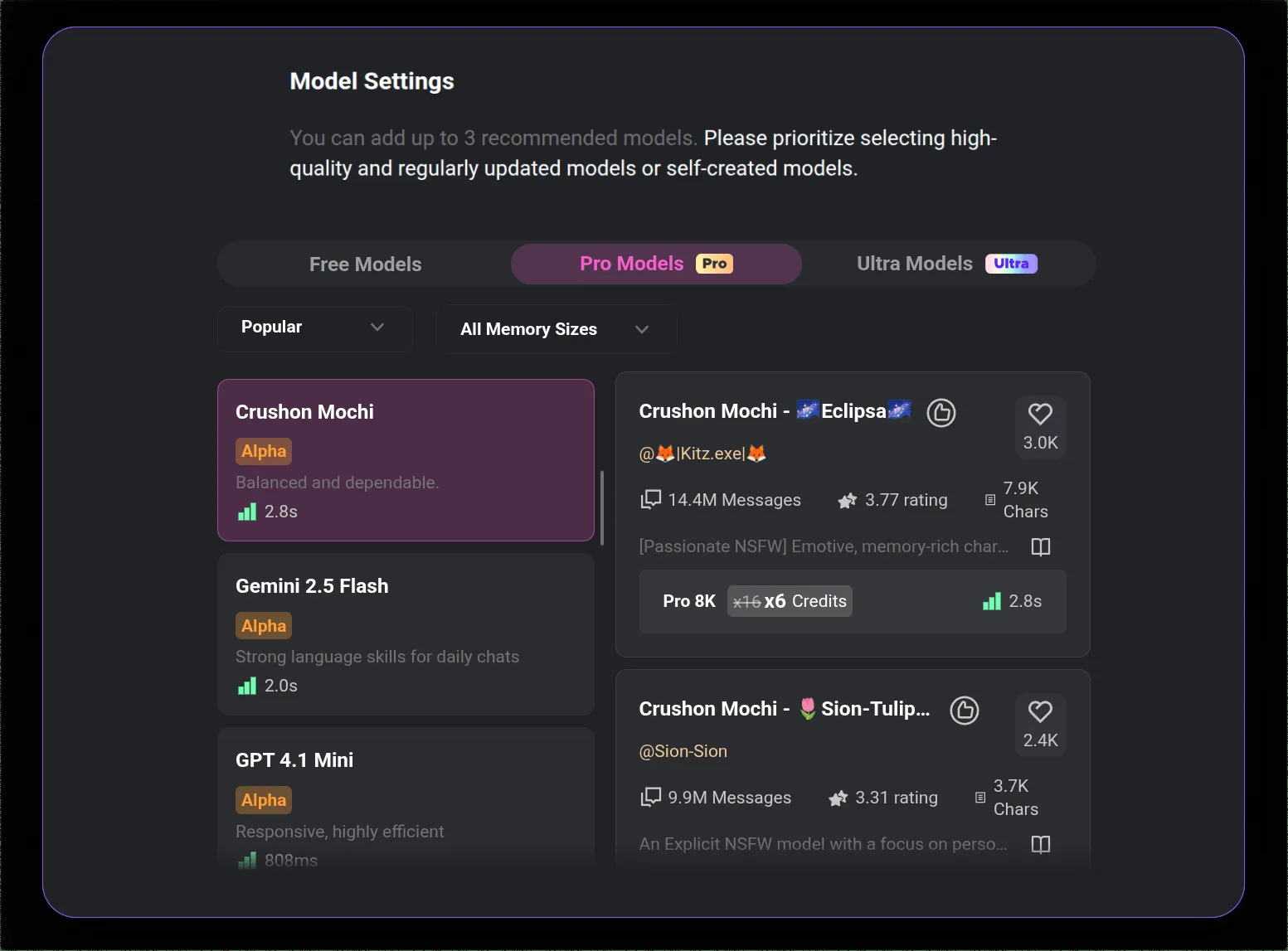
Fix: Switch models. In conversation settings, select MythoMax, GPT-4o, or Claude 3.5 Sonnet. All three have been significantly more stable than DeepSeek during this period. Check @CrushonAI for updates on DeepSeek status.
Known Issue: iOS App Store Unavailability
The CrushOn AI iOS app has been removed from some regional App Stores due to NSFW content policy conflicts with Apple's developer guidelines. This is an ongoing situation as of 2026.
Fix: Use the web version. Navigate to crushon.ai in Safari, use all features normally, and add to home screen for app-like access.
Ready to try CrushOn AI?
Visit CrushOn AIMessage Sending Issues
Symptom: Messages appear to send but no response is received, or messages show as pending.
Fix sequence:
- Check internet connection (load another site)
- Wait 30-60 seconds — server-side processing lag
- Refresh the conversation page
- Switch network (mobile data ↔ WiFi)
- Start a new conversation
If only one specific conversation is stuck: The conversation may be in a stuck state. Starting a new conversation with the same character typically resolves this. Existing conversation history is not lost.
Image Errors
"Image not found": Server congestion during generation. Wait 5-10 minutes, retry with a fresh prompt.
Images never appear after generation: Browser extension blocking image loading, or CDN issue. Disable extensions, try a different browser.
Image quality poor: If on Standard plan, quality is Standard (not HD). Add more specific style keywords to your prompt. Check that you're on the correct tier in account settings.
Issue Reference Table
| Issue | Most Likely Cause | Primary Fix |
|---|---|---|
| Won't load (all browsers) | Server down | Wait + check Twitter @CrushonAI |
| Won't load (one browser) | Browser cache/cookie | Hard refresh → clear cache |
| App crashes | Outdated app / storage | Update app → clear cache |
| Messages not sending | Connection / server | Wait and retry → new conversation |
| "Image not found" | Server congestion | Wait 5-10 min, retry |
| DeepSeek not working | Model instability (2026) | Switch to MythoMax / GPT-4o |
| App not in App Store (iOS) | Apple content policy | Use web version |
| Slow responses (free tier) | Shared server capacity | Upgrade or use off-peak hours |
For download and installation issues, see our download guide. For account management, see our account deletion guide.
Frequently Asked Questions
Check @CrushonAI on Twitter for status posts. Try loading the site on two different browsers simultaneously — if both fail, it's server-side. Try the web version if the app fails, or the app if the web fails.
Most common causes: server congestion (wait and retry), internet connection issue (test with another site), or a stuck conversation state (start a new conversation). If persistent across all conversations, check for a server outage announcement.
CrushOn AI goes down for planned maintenance, unplanned server issues, or high traffic spikes. Check @CrushonAI on Twitter for the specific cause and estimated restoration time. Most downtime events resolve within minutes to a few hours.
Try the web version at crushon.ai in your mobile browser. If web works but app doesn't: app-specific issue — update the app or reinstall. If neither works: server-side or network issue — check @CrushonAI and test your internet connection.
Free tier users share server resources, resulting in slower response times during high usage periods. Paid tiers include dedicated server capacity. Peak hours (evenings US time) are slowest. Upgrading to Standard or above is the most effective solution for response speed.
If you're finding the platform inaccessible: check @CrushonAI on Twitter for status updates. No major shutdown events have occurred as of May 2026 — Peekaboo Tech Inc. continues to operate the platform.